Guide
How to embed an audio player in Squarespace.
Squarespace's built-in audio block doesn't do before/after comparisons. Here's the exact click path to drop a lossless SoundToggle player — A/B or standard — into any Squarespace page, on any plan, including the two settings that trip most people up.
This is what you'll be embedding
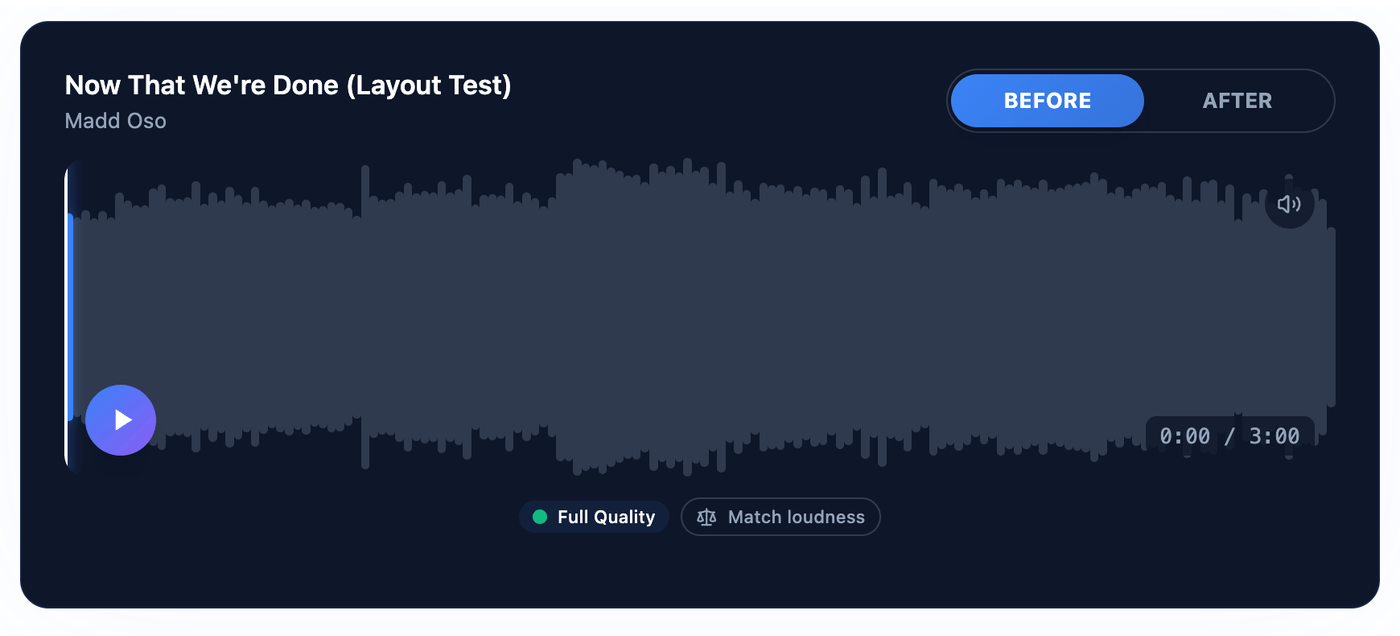
A live SoundToggle A/B player — the same one that ends up on your Squarespace page. Toggle it and hear the difference for yourself.
Two things to know before you start
Between them, these account for nearly every "the embed didn't work" report — and the first one gives you no error at all.
Set "Embed as" to Code Snippet, not Link
The Embed Block opens on Link, which expects an address from an oEmbed service and will quietly ignore an embed code — no error, no player, nothing to debug. Switch to Code Snippet, then open Embed data and paste there.
The editor won't render it — and tells you so
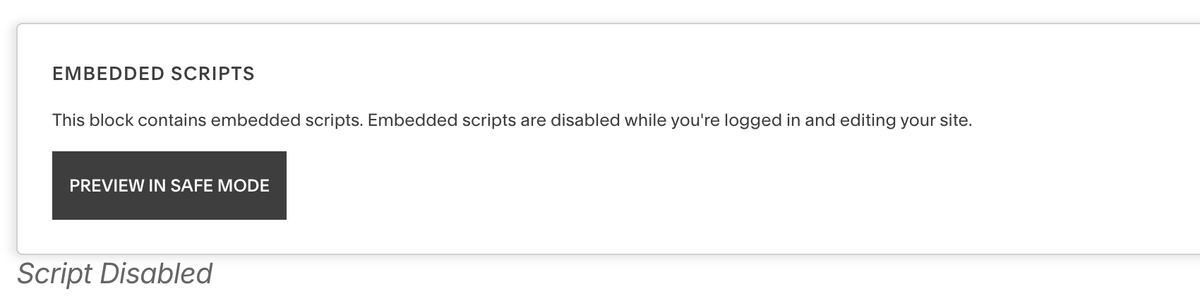
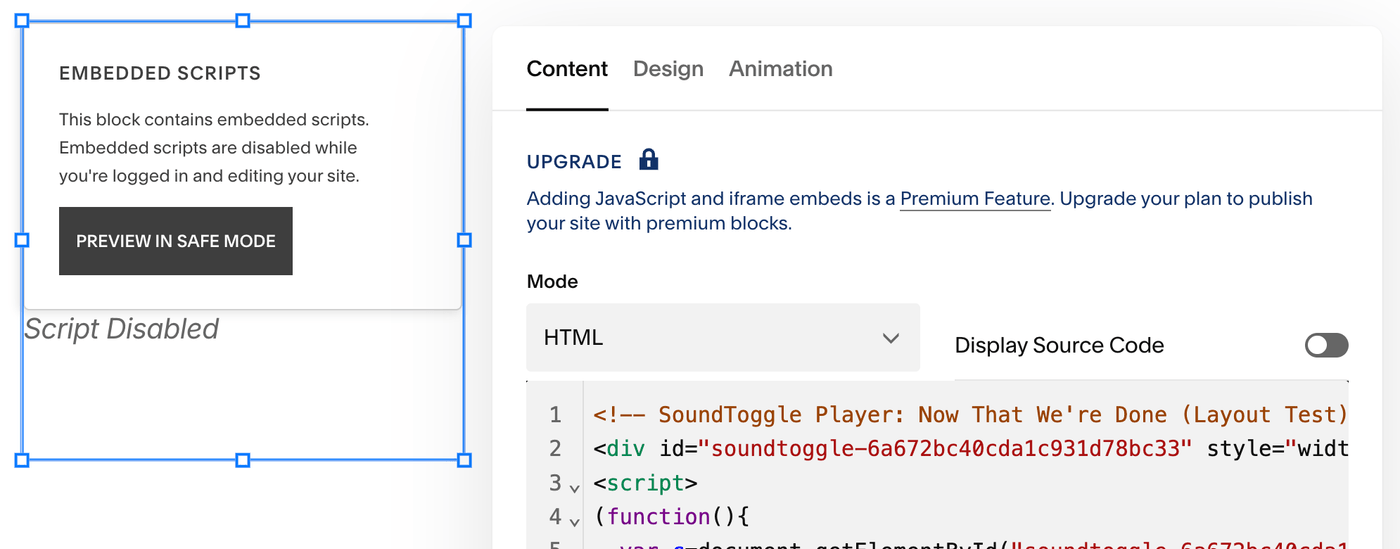
Squarespace disables embedded scripts while you're logged in and editing, so the block shows a notice instead of your player. That's expected, not a failure. Hit Preview in Safe Mode, or save and exit, to see the real thing. (A plain iframe does render in the editor.)
The click path, in 4 steps
The Responsive Embed in an Embed Block — no premium features, works in both Squarespace editors. No coding beyond copy-paste.
Copy the Responsive Embed from SoundToggle
In your SoundToggle dashboard, click the share/embed icon on the project card you want to publish, and choose Responsive Embed as the sharing method. Copy the whole snippet, script tag included — that script is what keeps the player from ever being clipped.
Add an Embed Block to your Squarespace page
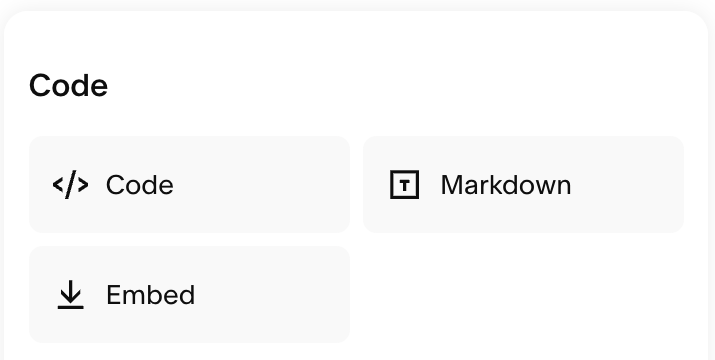
Edit the page, click an insert point (or the Add Block button), and pick Embed — it sits under Code in the block menu, alongside Code and Markdown. Every Squarespace plan includes the Embed Block, and Squarespace lists it as accepting JavaScript on all of them, so this route needs no premium features.
Switch "Embed as" to Code Snippet — not Link
Click the pencil icon to open the block. Under "Embed as" you get two options, Link and Code Snippet, and it opens on Link. This is the step that catches people out: Link expects an address from an oEmbed service and will quietly do nothing with an embed code, with no error to tell you so. Choose Code Snippet, then open Embed data and paste the whole snippet into the code field there.
Save and preview, then set the width
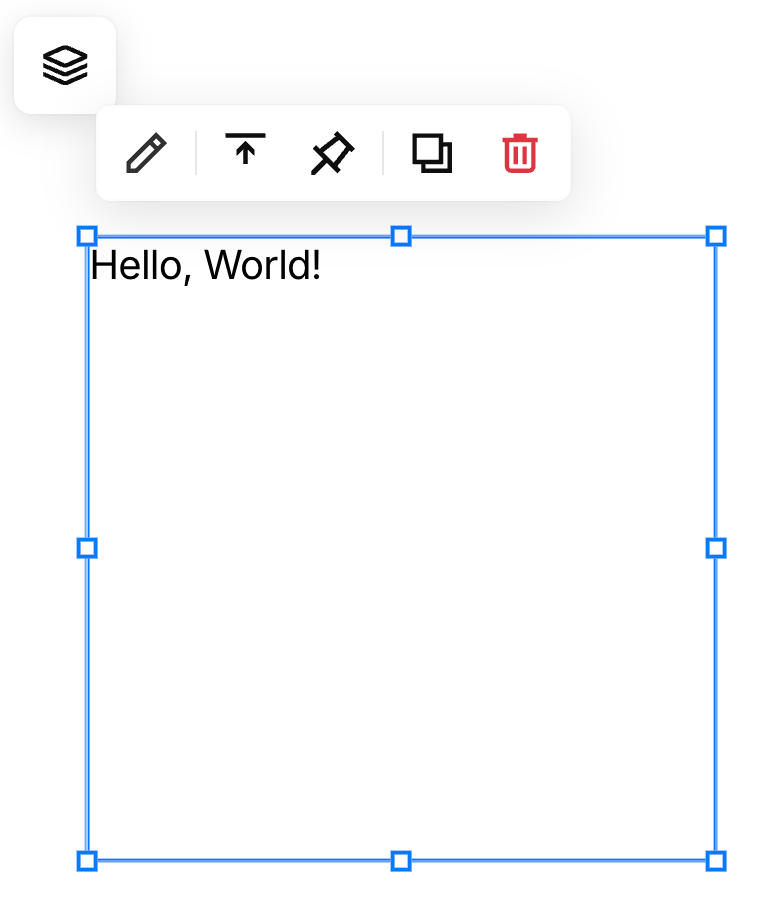
Don't expect the player in the editor. Squarespace disables embedded scripts while you're logged in and editing, and shows an "Embedded scripts are disabled" notice in the block instead — click Preview in Safe Mode, or save and exit, to see the real thing. Then size the block to your content width: in 7.1's Fluid Engine, drag its corner or edge handles; in a Classic Editor section, widen the column it sits in. Height needs no attention. Fluid Engine keeps a mobile layout you can arrange independently of desktop, so check the mobile view too.
Two variations, if you want them
The iframe embed instead of the script
- Same click path: Embed Block → pencil → Code Snippet → Embed Data. Only the code you paste differs.
- Unlike the script version, an iframe renders immediately inside the editor — genuinely useful while you are positioning the block and sizing it for mobile.
- The trade is a fixed height you set by hand, and revisit whenever the player content grows. Use the table below as a starting point.
A Code Block instead of an Embed Block
- A Code Block runs the same snippet, but JavaScript and iframes inside one are premium — Core, Plus, or Advanced (on legacy billing: Business, Commerce Basic, or Commerce Advanced). The Embed Block route above carries no such requirement, which is why it leads.
- You are not left guessing about the plan, at least: below Core the block itself shows an Upgrade notice saying that JavaScript and iframe embeds are a premium feature, and that you need to upgrade to publish your site with premium blocks.
- The editor preview behaves the same way — an embedded script is disabled while you edit, with the same notice and the same Preview in Safe Mode button.
- Code Injection is a different feature again — site-wide header and footer scripts, also Core and above. You do not need it for this.
Iframe height by player layout
Only needed on the iframe route. Starting points — add a little if your project has a longer title or a playlist.
| Player layout | Suggested height |
|---|---|
| Minimal | 80px |
| Compact | 260px |
| Full Width | 320px |
| Default | 420px |
| Waveform | 420px |
| Social | 480px |
| Playlist | 500px |
| Video | 600px |
Which layouts you can pick depends on your SoundToggle plan. Free includes the Default and Minimal layouts. Pro adds Compact, Waveform, Social, and Full Width. The Video layout is on Studio. "Playlist" above isn't a separate layout — it's the height a playlist project needs.
If something looks off
Nothing appears in the editor
Expected with the Responsive Embed. Look for the "Embedded scripts are disabled" notice in the block — hit Preview in Safe Mode, or save and exit, before changing anything.
Nothing appears on the live page either
Check "Embed as" is on Code Snippet rather than Link, that the snippet is in the Embed data field, and that the project is Public or Unlisted rather than Private.
Player is cut off at the bottom
The iframe route's fixed height is too short — check the table above. Or move to the Responsive Embed and stop thinking about height.
Squished or clipped on mobile only
Fluid Engine keeps a mobile layout you can arrange independently of desktop, so open the mobile view and widen the block there specifically.
More detail in the help center: Getting your embed code · Player embed not showing · Embed not resizing on mobile
Questions people ask
Can I embed a SoundToggle player on Squarespace?
Yes, on any plan. Add an Embed Block, open it with the pencil icon, choose Code Snippet, and paste either SoundToggle embed code there. The Embed Block is on every Squarespace plan and Squarespace lists it as accepting JavaScript on all of them, so neither of our embed codes needs a premium feature. We recommend the Responsive Embed, which resizes itself to fit the player.
I pasted the embed code and nothing appears
Two causes account for nearly all of these. First, check "Embed as" is set to Code Snippet rather than Link, and that the snippet went into the Embed data field: the Link option expects an address from an oEmbed service and silently ignores an embed code, giving you no error to work from. Second, script-based embeds — including our Responsive Embed — don't render while you're logged in and editing. Squarespace shows an "Embedded scripts are disabled" notice in the block instead; click Preview in Safe Mode, or save and exit, before concluding anything is broken. A plain iframe, by contrast, shows up in the editor straight away.
Do I need a specific Squarespace plan to embed a player?
Not for the Embed Block route in this guide — it works on every plan, including Basic and the legacy Personal plan. Plans matter only if you'd rather use a Code Block: every plan includes one, but it renders just HTML, plain text, Markdown, and CSS inside <style> tags until you reach the Core plan, since adding JavaScript or an iframe to a Code Block is a premium feature (Core, Plus, and Advanced; on legacy billing, Business, Commerce Basic, and Commerce Advanced). Code Injection follows the same Core-and-above rule and isn't needed for this at all.
Should I use the Responsive Embed or the Iframe embed?
The Responsive Embed, in most cases. It resizes itself to its content, so the player can't be clipped when a project changes — a longer title, an extra playlist track — which removes the most common embed problem before it happens. The Iframe embed is worth choosing if you want to see the player inside the Squarespace editor while you position it, since the script version stays invisible until you leave the editor; the cost is a fixed height you set by hand and update when the player content grows.
Can I use a Code Block instead of an Embed Block?
Yes, from the Core plan up. A Code Block runs the same snippet, but JavaScript and iframes inside one are a premium feature — Core, Plus, or Advanced, and on legacy billing Business, Commerce Basic, or Commerce Advanced. Below that it renders only HTML, plain text, Markdown, and CSS in <style> tags, so the snippet won't run. The Embed Block has no such requirement, which is why this guide uses it. Either way, a script-based embed only appears once you leave the editor.
Why is my player clipped or cut off at the bottom?
That one belongs to the iframe route — the fixed height is too short for the layout you picked, so check it against the height table above and add a little if your project has a long title or a playlist. On the Responsive Embed it should not happen at all; if it does, confirm the whole snippet was pasted, script tag included, since a trimmed script leaves a player that loads but never resizes. Also check the project is Public or Unlisted rather than Private, as private projects only render for you while logged in.
Why does the player look squished on mobile?
Almost always the block is narrower on mobile than it is on desktop. Fluid Engine keeps a mobile layout you can arrange independently of the desktop one, so widening a block on desktop doesn't necessarily widen it on phones — open the mobile view in the editor and size it there as well. Width always comes from the container you give the player; the Responsive Embed only takes care of height.
Can I password-protect a player before I show it to a client?
Yes. Set the project to Unlisted in SoundToggle and add an access password (available on the Pro plan and above) — the password applies wherever the player is embedded, including inside your Squarespace page, so only people with the password can hear it.
Does the embedded player support lossless WAV or FLAC playback?
It can, on a paid SoundToggle plan. The Free plan accepts lossy formats only (MP3, AAC, OGG, Opus, M4A, WebM); Pro and above add lossless WAV, FLAC, AIFF, and ALAC up to 500 MB per file, which is what you want for an accurate before/after comparison.
Does Squarespace have a built-in before/after audio player?
No. The native Audio Block plays one uploaded file per block, so a before/after comparison means two separate players and the visitor lining them up by hand. For a real A/B — one play button, one timeline, instant switch between versions at the same moment — embed a SoundToggle player with the Embed Block route above. It works on every Squarespace plan.
Free plan · No credit card
Your Squarespace page deserves a real A/B player.
Create your first project, grab the embed code, and you'll be toggling before/after audio on your site in a few minutes.
Get started free