Guide
How to embed an audio player in WordPress.
WordPress's native audio block doesn't do before/after comparisons. Here's the exact click path to drop a lossless SoundToggle player — A/B or standard — into any WordPress page, plus the two things behind most "it didn't work" reports: the WordPress.org-vs-.com split, and an editor that shows you nothing and doesn't explain itself.
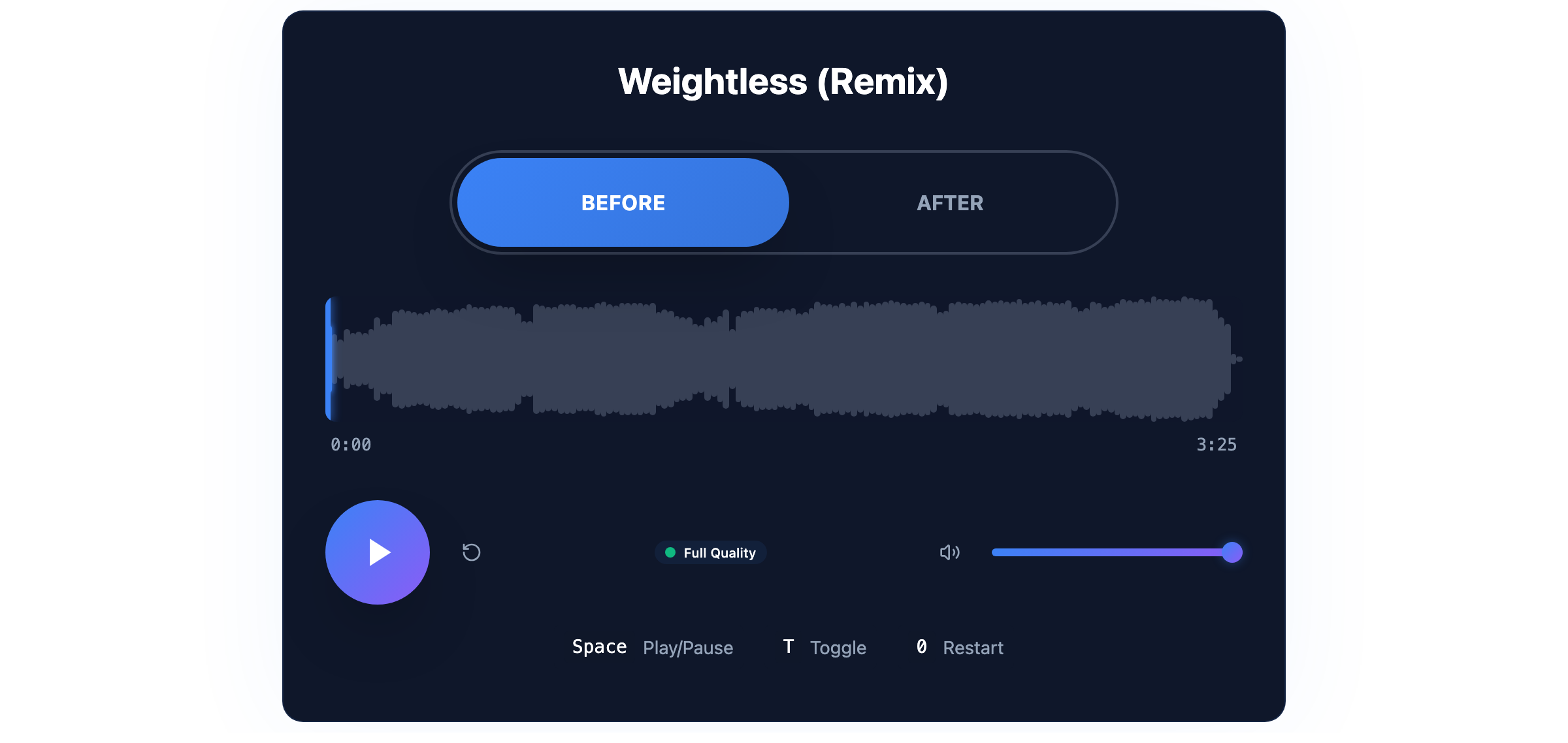
This is what you'll be embedding
A live SoundToggle A/B player — the same one that ends up on your WordPress page. Toggle it and hear the difference for yourself.
Three things to know before you start
"WordPress" quietly means two different products, and most "the embed didn't work" reports come from mixing them up — or from trusting what the editor shows you.
Self-hosted WordPress.org: this just works for Admins and Editors
If your site runs on WordPress.org — through a host like Bluehost, SiteGround, or WP Engine, which covers most "I have a WordPress site" cases — a normal single-site install gives both the Administrator and Editor roles the unfiltered_html capability by default. The Custom HTML block runs scripts and iframes immediately, with nothing to enable. (On WordPress Multisite specifically, only the network Super Admin has that capability by default — a narrower, more technical setup.)
Hosted WordPress.com: activation, not just a paid plan, is the gate
WordPress.com — the hosted SaaS version, different from self-hosted WordPress.org — filters iframe, script, and a few other tags out of the Custom HTML block unless the site is on a paid plan with hosting features activated. The part people miss: a paid plan by itself isn't enough. Activation is a one-time step — install any plugin, or upload a theme, and it sticks. That's the usual reason a snippet previews fine right after upgrading and still vanishes on the live page.
The editor won't render it — and, unlike Squarespace, won't say so
WordPress shows the Custom HTML preview inside a sandboxed frame that withholds a same-origin identity, so the player boots on the origin null and the browser refuses its calls back to SoundToggle. The preview pane sits empty, the block in the canvas sits empty, and no notice explains why. Scripts aren't the problem — a plain inline script runs in that pane fine — it's specifically anything that has to load from elsewhere. A blank editor here means nothing. Publish, or hit Preview to open the real page in a new tab, and judge it there.
The click path, in 5 steps
The Responsive Embed in a Custom HTML block — no plugin required on self-hosted WordPress.org. No coding beyond copy-paste. Screenshots are from WordPress 7.0.
Copy the Responsive Embed from SoundToggle
In your SoundToggle dashboard, click the share/embed icon on the project card you want to publish, and choose Responsive Embed as the sharing method. Copy the whole snippet, script tag included — that script is what keeps the player from ever being clipped.
Add a Custom HTML block
Edit the page or post in the block editor, click the + (Add block) button, and type "Custom HTML" in the search field. One block matches, named exactly that — it lives under Widgets rather than with the media blocks. Select it to drop it in at that point in the page.
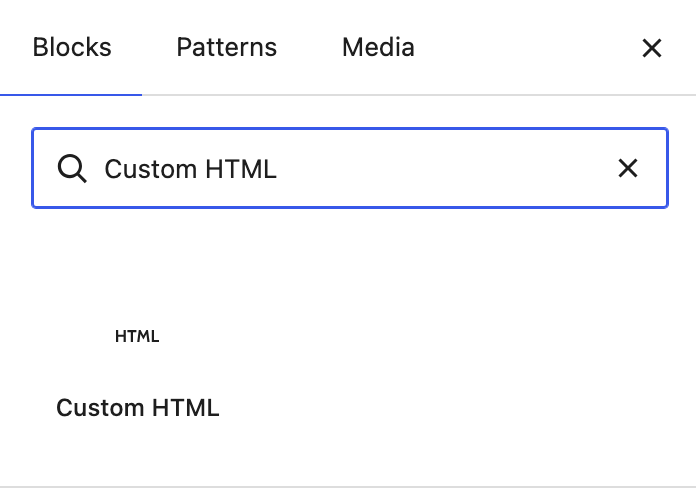
Click "Edit HTML" on the block placeholder
The block does not drop you straight into a text box. In WordPress 7.0 it arrives as a placeholder — "Add custom HTML code and preview how it looks." — with a single Edit HTML button. Click it to open the code editor.

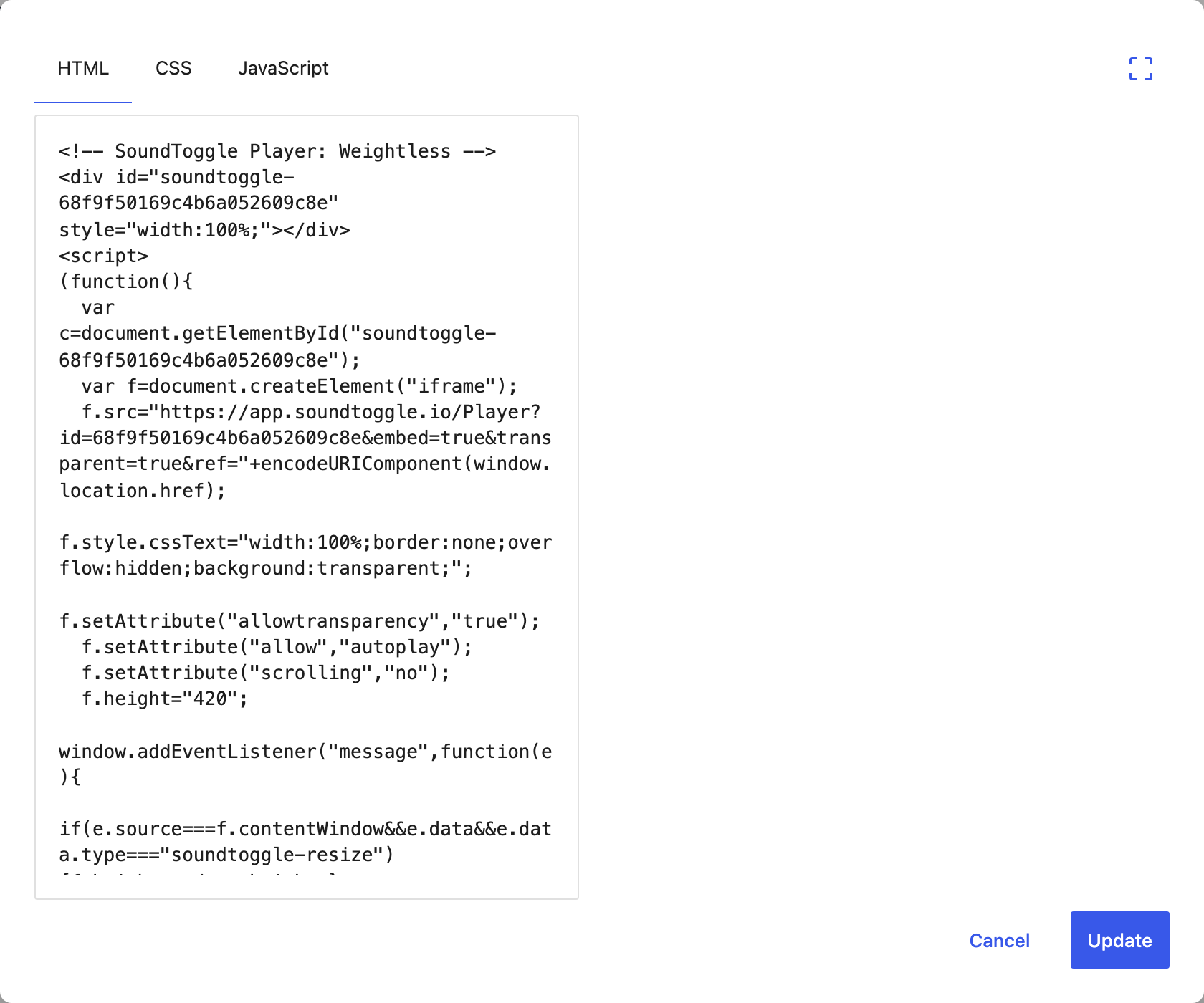
Paste into the HTML tab, then click Update
Edit HTML opens a modal with three tabs — HTML, CSS and JavaScript — and a preview pane on the right. Paste the whole snippet, script tag and all, into the HTML tab; it does not need splitting across the tabs. Then click Update to commit it to the block. Expect the preview pane to stay empty: see the section below, that is normal for this embed and not a sign of a bad paste.
Publish, then check the published page
Publish or Update the page, then open the live page — or use the editor's own Preview, which opens the real page in a new tab. That is the first place the player actually appears. Because the Responsive Embed resizes to its own content, you never set a height by hand: on test, the embed sized itself from 420px to 561px on load, with nothing clipped.
Different setup? Three variations
Using Elementor instead of the block editor
- If your theme or page is built with Elementor rather than the default block editor, use its HTML widget instead — search "HTML" in the widget panel, which returns exactly one widget, named HTML — and paste the same embed snippet into it.
- The HTML widget takes script and iframe code directly, same as the Custom HTML block. On test it stored the script untouched and the player rendered on the published page, self-sizing the same way.
- The permission gate is the same one as everywhere else in WordPress: the unfiltered_html capability. On a normal single-site install, Administrators and Editors have it and can save the snippet; other roles may see it stripped.
Still on the Classic Editor
- On the older Classic Editor (still common on sites that haven't moved to the block editor, or that use the Classic Editor plugin), switch the post from Visual to the code tab and paste the embed snippet directly into the HTML source at the point you want the player.
- That tab is labelled "Code" in current WordPress — it was called "Text" for years, and plenty of older guides still say so, but the label in core changed. It sits immediately to the right of Visual, top-right of the editor box.
- There's no separate HTML block to add — the whole post body is treated as one HTML source in that mode, and it saves with no block wrapper around it.
Published page still isn't showing it
- If the player is missing from the published page — not just from the editor, where it is always missing — a caching or JS-optimization plugin (WP Rocket, Autoptimize, W3 Total Cache, and similar tools all have this class of setting) may be delaying, deferring, or minifying the embed script in a way that breaks it.
- Try excluding the SoundToggle script URL from any "delay JS," "defer JS," or JS-minification setting first — that resolves this for most embed scripts, not just ours.
- Purge the cache after you publish, too: a cached copy of the page from before you added the block will happily keep serving without it.
Iframe height by player layout
Only needed on the iframe route. Starting points — add a little if your project has a longer title or a playlist.
| Player layout | Suggested height |
|---|---|
| Minimal | 80px |
| Compact | 260px |
| Full Width | 320px |
| Default | 420px |
| Waveform | 420px |
| Social | 480px |
| Playlist | 500px |
| Video | 600px |
Which layouts you can pick depends on your SoundToggle plan. Free includes the Default and Minimal layouts. Pro adds Compact, Waveform, Social, and Full Width. The Video layout is on Studio. "Playlist" above isn't a separate layout — it's the height a playlist project needs.
If something looks off
Nothing appears in the editor
Expected — don't act on it. Neither the modal's preview pane nor the block in the canvas renders this embed, for the sandbox reason above. Judge it on the published page instead. Only if that is blank should you re-copy the snippet.
Published page is blank too
On hosted WordPress.com, check whether hosting features are activated (see the card below) before anything else. Then purge your cache, check a caching or JS-optimization plugin's delay/defer/minify settings, and confirm the project is Public or Unlisted rather than Private.
Upgraded WordPress.com plan, still stripped
A paid plan alone doesn't activate hosting features — that needs a one-time step: install any plugin, or upload a theme. That's the step people miss, and it's the usual reason an upgrade doesn't fix the embed.
Player is cut off at the bottom
The iframe route's fixed height is too short — check the table above. Or move to the Responsive Embed and stop thinking about height.
Block editor won't let you paste a script
Your account may be missing the unfiltered_html capability. On single-site WordPress.org, Administrators and Editors both have it by default — this mostly hits WordPress Multisite (only Super Admins have it there) or a site hardened by a security plugin.
More detail in the help center: Getting your embed code · Player embed not showing · Embed not resizing on mobile
Questions people ask
Can I embed a SoundToggle player on WordPress?
Yes. Add a Custom HTML block in the block editor, click Edit HTML, paste either SoundToggle embed code into the HTML tab, and click Update. On a normal self-hosted WordPress.org site, logged in as an Administrator or Editor, this works immediately — no plugin and no setting to change. Just check the published page rather than the editor: the editor does not render this embed. We recommend the Responsive Embed, which resizes itself to fit the player.
I pasted the embed code and nothing appears
First, check where you're looking. If it's the editor — the modal's preview pane, or the block sitting in the canvas — nothing appearing is expected, and says nothing about your snippet. Open the published page, or the editor's Preview (which opens the real page in a new tab), and judge from there. If the published page is genuinely blank, the most common causes are: on hosted WordPress.com, a paid plan that hasn't had its hosting features activated yet (installing any plugin, or uploading a theme, activates it — upgrading the plan alone doesn't); a caching or JS-optimization plugin delaying or minifying the script, or simply serving a cached copy from before you added the block; an account role without the unfiltered_html capability; or a snippet that didn't paste in full, so re-copy it from SoundToggle with the script tag included.
Do I need a specific plugin to embed a player in WordPress?
No, not on self-hosted WordPress.org — the built-in Custom HTML block (or the HTML widget if you're using Elementor) is enough, as long as you're logged in as an Administrator or Editor. Both were tested on WordPress 7.0 and both saved the script untouched. You only run into a wall on hosted WordPress.com, where script and iframe tags in the Custom HTML block need a paid plan with hosting features activated — and activation itself needs one more step: installing any plugin or uploading a theme, not just being on a paid plan.
Should I use the Responsive Embed or the Iframe embed?
The Responsive Embed, in most cases. It resizes itself to its content, so the player can't be clipped when a project changes — a longer title, an extra playlist track — which removes the most common embed problem before it happens. The Iframe embed is worth using only if your setup can't run the script version at all (a restrictive WordPress.com plan, for instance); the trade is a fixed height you set by hand and revisit if the player content grows.
Why doesn't the player show up in the block editor?
Because the editor can't show it, and that's expected rather than a fault. WordPress renders the Custom HTML preview inside a sandboxed iframe that deliberately withholds a same-origin identity, so our player boots on the origin "null" and its own requests back to app.soundtoggle.io get refused by the browser's cross-origin rules. Scripts aren't blocked — a plain inline script runs in that pane quite happily — it's specifically anything that has to call home. Both the modal's preview pane and the block in the canvas stay empty, and the player appears the moment you view the published page. Don't re-copy the snippet on the strength of a blank editor.
Can I embed a player if my site uses Elementor instead of the block editor?
Yes — use the HTML widget instead of the Custom HTML block, and paste the same embed snippet into it. Searching "HTML" in the widget panel returns exactly one widget, named HTML. On test it accepted the script untouched and the player rendered on the published page, resizing itself the same way it does elsewhere. The same unfiltered_html permission applies as everywhere else in WordPress: Administrators and Editors can save the snippet on a normal single-site install.
Why is my player clipped or cut off at the bottom?
That belongs to the iframe route — its fixed height is too short for the layout you picked, so check it against the height table above and add a little if your project has a long title or a playlist. On the Responsive Embed it should not happen at all; if it does, confirm the whole snippet was pasted, script tag included, and that the project is Public or Unlisted rather than Private, since private projects only render for you while logged in.
Can I password-protect a player before I show it to a client?
Yes. Set the project to Unlisted in SoundToggle and add an access password (available on the Pro plan and above) — the password applies wherever the player is embedded, including inside your WordPress page, so only people with the password can hear it.
Does the embedded player support lossless WAV or FLAC playback?
It can, on a paid SoundToggle plan. The Free plan accepts lossy formats only (MP3, AAC, OGG, Opus, M4A, WebM); Pro and above add lossless WAV, FLAC, AIFF, and ALAC up to 500 MB per file, which is what you want for an accurate before/after comparison.
Free plan · No credit card
Your WordPress site deserves a real A/B player.
Create your first project, grab the embed code, and you'll be toggling before/after audio on your site in a few minutes.
Get started free